Self-host Huly
Issues, chat and docs in one open source workspace, private on your VM.
Shelley handles the setup. About 20 minutes.
Prefer a terminal?
curl -fsSL https://exe-staging.dev/deploy/huly/prompt.txt | ssh exe.dev new --prompt=/dev/stdinHuly is an open source workspace for teams: an issue tracker in the style of Linear (projects, milestones, sub-issues, time estimates), channels and direct messages, collaborative documents, a planner, a drive and a knowledge base, all linked to each other. It runs as about a dozen containers with CockroachDB, Elasticsearch, Redpanda and MinIO under them, which makes it heavier than a plain issue tracker but still fits on a new exe.dev VM.
This setup keeps Huly private behind exe.dev's HTTPS proxy:
only you and the people you share the VM with can reach
it, and they sign in with their exe.dev login, with no Huly password to
manage. Sharing the VM is all it takes to join your workspace. An
agent account works in the same workspace: agents on the VM use the
huly command or the MCP server, and agents elsewhere reach the MCP
server with a VM token.
What you get#
- Huly 0.7 at
https://my-huly.exe.xyz/, behind exe.dev login, back after a reboot. - Sign-in with exe.dev, through Dex: you own a workspace called Team, with Huly's sample projects, and everyone you share the VM with joins it as a member when they first sign in. Huly's password sign-up is off.
- An
agentaccount and thehulycommand on the VM, checked by creating, commenting on and closing an issue. - The Huly MCP server on port 8100, added to Shelley on the VM and reachable from your computer with two tokens.
- Nightly backups of all Huly data and its settings in
~/huly/backups.
What's running, and where
https://my-huly.exe.xyz/
Huly, for you and the people you share the VM with, signed in with exe.dev
https://my-huly.exe.xyz:8100/mcp
The MCP server, for agents with an exe.dev VM token and the MCP token
Deploy with Shelley#
Click Deploy and Shelley will set up Huly on a new VM, then check that it works. No config-file wrangling required.
Prefer a terminal?
curl -fsSL \
  https://exe-staging.dev/deploy/huly/prompt.txt \
  | ssh exe.dev new --prompt=/dev/stdin
What Shelley is told
Set up Huly on this VM by following the exe.dev recipe at https://exe-staging.dev/deploy/huly.md?via=deploy from top to bottom.

The recipe's example VM name is my-huly. This VM's name is the output of `hostname`: use it wherever the recipe writes my-huly. Skip the step that creates the VM; you are on it.

You are done when all of these are true. Check each one yourself:
- Huly 0.7 at `https://my-huly.exe.xyz/`, behind exe.dev login, back after a reboot.
- Sign-in with exe.dev, through Dex: you own a workspace called Team, with Huly's sample projects, and everyone you share the VM with joins it as a member when they first sign in. Huly's password sign-up is off.
- An `agent` account and the `huly` command on the VM, checked by creating, commenting on and closing an issue.
- The Huly MCP server on port 8100, added to Shelley on the VM and reachable from your computer with two tokens.
- Nightly backups of all Huly data and its settings in `~/huly/backups`.

Read the whole recipe, closed details included, and follow "Install by
hand" in order, skipping VM creation; the walkthrough above it is for
the owner. If the reflection integration doesn't return the owner's
email, ask the owner for the email they sign in to exe.dev with. Don't
make the VM public. Don't run Restore or Update. Finish with Huly's URL,
that everyone signs in with "Continue with exe.dev", how to share the
VM to bring in teammates, and the "Let agents work in Huly" section.

Finish with the URLs I should open.
Also at /deploy/huly/prompt.txt. The recipe it follows is /deploy/huly.md.
Open your workspace#
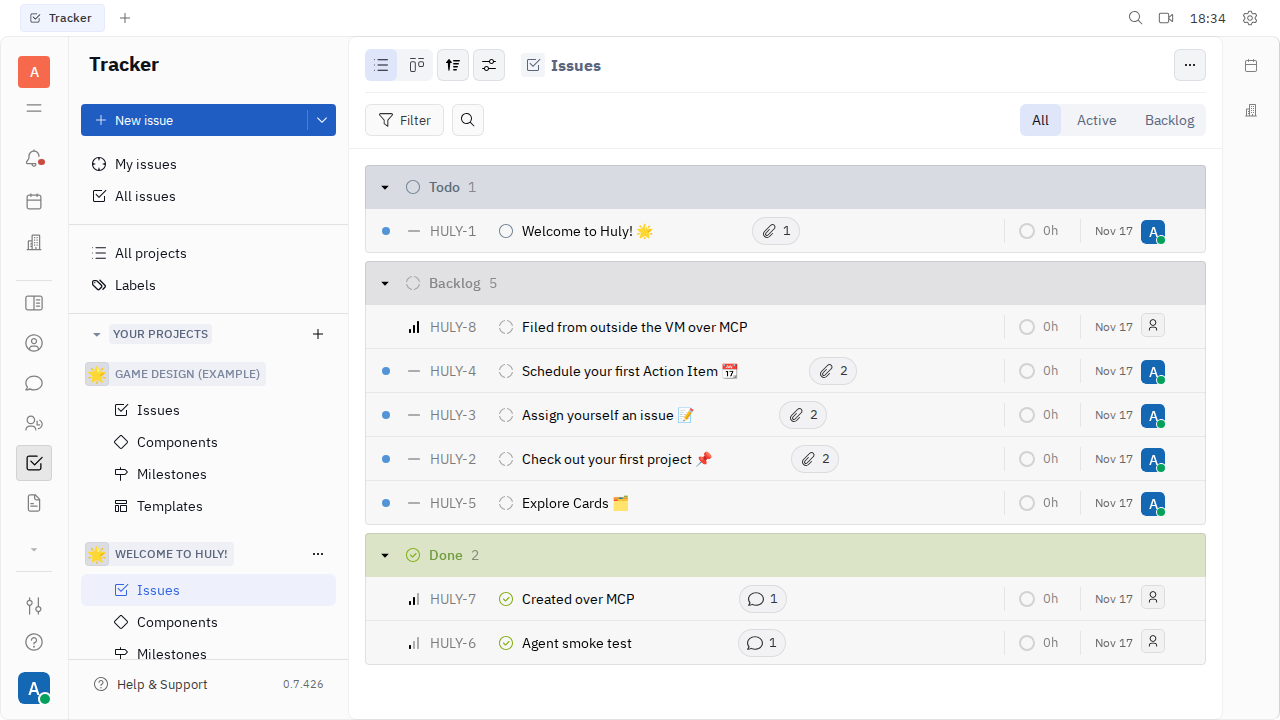
Open https://my-huly.exe.xyz/ and sign in to exe.dev if asked. On
Huly's login page, press Continue with exe.dev. Huly knows you by
your exe.dev email and opens Team, the workspace you own. Huly fills a
new workspace with two sample projects, Welcome to Huly! and Game
Design (Example), so there's something to click on:
- The tracker opens first. Press New issue (or
C) to file one. - Open an issue to change its status, assign it, add sub-issues, or comment.
- The icons in the left bar open the rest: chat, documents, the planner, the drive, contacts. Hover over one to see its name.
Change your name under your profile picture, bottom left, then
Settings. Archive the sample projects whenever you like. Your account
also has a password, OWNER_PASSWORD in ~/huly/huly_v7.conf, for the
email form on Huly's login page; you need it only if exe.dev sign-in
ever stops working. Ignore Login with code and Continue as a guest there:
neither works on this setup.
Bring your team#
To bring in a teammate, share the VM with them. On your computer:
ssh exe.dev share add my-huly alice@example.com
exe.dev emails them a link. When they open Huly and press Continue
with exe.dev, Huly creates their account and adds them to Team as a
member; there's no invite or password to pass around. Their name starts
out as the part of their email before the @, and they can change it
under Settings.
ssh exe.dev share add my-huly team shares with your whole
exe.dev team. To remove someone, run ssh exe.dev share remove my-huly alice@example.com; they can no longer reach Huly,
and their name stays on what they wrote. Removing them inside Huly isn't
enough: while they can reach the VM, signing in adds them back.
Note
Anyone with a Huly account on your server can also create workspaces of their own from the workspace picker. That's harmless on a VM only your team can reach, but it's why sharing the VM is the real gate.
Let agents work in Huly#
Setup created an agent account in the Team workspace, so everything
agents do shows up under its name. Its password and the MCP token are
in ~/huly/huly_v7.conf, with the rest of the secrets.
On the VM#
The huly command reads that file and talks to Huly as the agent. Try
it, on the VM:
huly projects list
huly issues create --project HULY --title "Try the Huly CLI" --priority low
huly issues list --project HULY --limit 3
issues create prints the new issue's identifier, such as HULY-7.
Huly's client library also logs some chatter to stderr; add
2>/dev/null to see only the results. Comment on the issue and close
it (use your identifier):
huly comments add --project HULY --issue-identifier HULY-7 --body "Done from the CLI."
huly issues update HULY HULY-7 --status Done
huly issues get HULY HULY-7 --json 2>/dev/null | jq -c '.result | {identifier, status}'
The last command shows "status":"Done", and the issue in Huly has
the agent's comment. --json makes any command print JSON, and huly --help lists the rest: documents, channels, milestones, labels, the
planner, time tracking.
Shelley on this VM also has Huly's MCP server, added as huly, so you
can simply ask:
Using the huly MCP server, file an issue in project HULY for each TODO in ~/app/README.md, then list the open issues in HULY.
The MCP server shows a handful of tools (search_tools,
get_tool_schema, invoke_tool) that reach all of Huly's operations,
about 600 of them, which keeps an agent's context small. Claude Code or
Codex on the VM can use the huly command, or add the server the same way
(the URL is http://localhost:8100/mcp, with the header
Authorization: Bearer and MCP_AUTH_TOKEN from the settings file).
From your computer or another VM#
Port 8100 is behind exe.dev's proxy too, so a remote agent needs two tokens: an exe.dev VM token for the proxy, and the MCP token. Create the VM token on your computer:
ssh exe.dev ssh-key generate-api-key --vm=my-huly --label=huly-agents --exp=90d
Get the MCP token with grep ^MCP_AUTH_TOKEN ~/huly/huly_v7.conf on the
VM. Then add the server to Claude Code, on your computer:
claude mcp add --transport http --scope user huly https://my-huly.exe.xyz:8100/mcp \
  --header "X-Exedev-Authorization: Bearer exe1.paste-vm-token-here" \
  --header "Authorization: Bearer paste-mcp-token-here"
Or to Shelley on another VM:
shelley mcp add huly -d "Huly" \
  -H "X-Exedev-Authorization: Bearer exe1.paste-vm-token-here" \
  -H "Authorization: Bearer paste-mcp-token-here" \
  https://my-huly.exe.xyz:8100/mcp
The proxy checks and removes X-Exedev-Authorization; the MCP server
checks Authorization. With either one missing, the request is refused.
Warning
The agent can do anything a workspace member can, in every project. Keep
huly_v7.confprivate, and see Troubleshooting to change the MCP token or the agent's password.
Keep your data#
Everything Huly stores lives in Docker volumes named huly_v7_*. Every
night at 04:30 UTC a timer stops Huly for about a minute and packs those
volumes, with the settings file, into ~/huly/backups, keeping a week
of archives. Keep a copy off the VM: the archive includes
huly_v7.conf, so it holds every secret too. On your computer:
scp -r my-huly.exe.xyz:huly/backups .
For updates or hiccups, ask Shelley, or open the instructions below.
The nuts and bolts#
Happy with what Shelley set up? Stop here. Below are the steps it followed, and maintenance for later.
Install by hand
Create the VM#
On your computer (pick another name if my-huly is taken):
ssh exe.dev new --name=my-huly
ssh my-huly.exe.xyz
A new VM has 2 CPUs, 8 GB of memory and a 25 GB disk, which is enough.
All remaining commands run on the VM, as exedev.
Write the settings#
Huly's self-hosting kit, huly-selfhost,
has no releases, so this pins a commit, and the Huly version it was
tested with. Every setting and secret goes in one file only you can
read, ~/huly/huly_v7.conf, which Docker Compose reads as its .env.
The owner is the VM owner's exe.dev email, from the
reflection integration:
sudo systemctl enable --now docker.service
[ -d ~/huly ] || git clone -q https://github.com/hcengineering/huly-selfhost.git ~/huly
cd ~/huly
git -c advice.detachedHead=false checkout ca3808a57c83518b971343df7d073753f38796ed
owner=$(curl -fsS https://reflection.int.exe.xyz/email | jq -r '.email // empty')
echo "Huly owner: ${owner:?no owner email; set owner=you@example.com and rerun}"
if [ ! -f huly_v7.conf ]; then
  cr=$(openssl rand -hex 24)
  (umask 077; cat > huly_v7.conf <<EOF
# Huly settings and secrets. Docker Compose reads this file as .env.
HULY_VERSION=v0.7.426
DESKTOP_CHANNEL=0.7.426
DOCKER_NAME=huly_v7
HOST_ADDRESS=$(hostname).exe.xyz
SECURE=true
HTTP_BIND=127.0.0.1
HTTP_PORT=8000
TITLE=Huly
DEFAULT_LANGUAGE=en
LAST_NAME_FIRST=true
CR_DATABASE=defaultdb
CR_USERNAME=selfhost
CR_USER_PASSWORD=$cr
CR_DB_URL=postgres://selfhost:$cr@cockroach:26257/defaultdb
REDPANDA_ADMIN_USER=superadmin
REDPANDA_ADMIN_PWD=$(openssl rand -hex 24)
SECRET=$(openssl rand -hex 32)
VOLUME_ELASTIC_PATH=
VOLUME_FILES_PATH=
VOLUME_CR_DATA_PATH=
VOLUME_CR_CERTS_PATH=
VOLUME_REDPANDA_PATH=
# You, the workspace owner. Change the password in Huly if you like.
OWNER_EMAIL=$owner
OWNER_PASSWORD=$(openssl rand -hex 12)
# The agent account, for the huly command and the MCP server
HULY_URL=http://localhost:8000
HULY_WORKSPACE=team
HULY_EMAIL=agent@example.com
HULY_PASSWORD=$(openssl rand -hex 24)
MCP_TRANSPORT=http
MCP_HTTP_HOST=0.0.0.0
MCP_HTTP_PORT=8100
MCP_AUTH_TOKEN=$(openssl rand -hex 32)
HULY_MCP_TELEMETRY=0
DO_NOT_TRACK=1
# Sign-in with exe.dev, through Dex (setup adds HULY_TEAM_INVITE later)
OPENID_CLIENT_SECRET=$(openssl rand -hex 32)
EOF
  )
fi
ln -sfn huly_v7.conf .env
ls -l huly_v7.conf .env
The owner line should show the email you sign in to exe.dev with. If the
reflection integration is missing, set owner= to that email yourself
and rerun the block. huly_v7.conf should be -rw-------. The agent's
address is a placeholder; Huly never sends it mail.
Put Huly behind the exe.dev proxy#
huly-selfhost ships nginx in front of Huly's services. Four files adapt it and add sign-in with exe.dev:
nginx-exe.confreplaces its nginx configuration. On port 8000, where exe.dev's proxy connects, browsers gethttps://addresses for your VM, while programs on the VM that callhttp://localhost:8000get local ones (the VM can't reach its ownhttps://address). It also sends/dex/to Dex and has every exe.dev sign-in use a standing invite to Team.dex.yamlsets up Dex, which turns the proxy'sX-ExeDev-Emailheader into an OpenID Connect sign-in, the kind Huly understands.account-start.shstarts Huly's account service. It removes the account API's three ways to sign up with a password, and its way to add another email to your account, which would let anyone who can reach Huly claim a teammate's email before they first sign in, and it waits for Dex, which Huly looks up only once.compose.override.yml, which Docker Compose merges into huly-selfhost'scompose.yml, mounts those files, adds Dex, restarts the event queue after a reboot, unpublishes a port nothing outside needs, and hides the sign-up page.
Dex's address is http://my-huly.exe.xyz/dex. Browsers follow it
through exe.dev's proxy, which moves them to https. Inside Docker the
same name leads to nginx's port 80, so Huly's account service checks
sign-ins with Dex without leaving the VM. That port serves Dex's keys
and tokens only; the pages that believe the exe.dev headers are on
port 8000 alone.
cd ~/huly
cat > nginx-exe.conf <<'EOF'
# Huly behind the exe.dev HTTPS proxy. Requests that arrive as
# localhost:8000 (agents on this VM) get local URLs in /config.json
# and from the account service; everyone else gets https://HULY_HOST.
map $http_host $huly_http { default https://HULY_HOST; localhost:8000 http://localhost:8000; }
map $http_host $huly_ws   { default wss://HULY_HOST;   localhost:8000 ws://localhost:8000; }
# Dex signs people in from the exe.dev proxy's headers. Their name in
# Huly starts out as the part of their email before the @.
map $http_x_exedev_email $exe_name { ~^(?<name>[^@]+)@ $name; default ""; }

# Port 8000, published on 127.0.0.1: where the exe.dev proxy connects.
server {
    listen 8000;
    server_name _;
    client_max_body_size 100M;
    proxy_http_version 1.1;
    proxy_set_header Host $host;
    proxy_set_header X-Forwarded-For $proxy_add_x_forwarded_for;
    sub_filter_types application/json;
    sub_filter_once off;

    location / {
        proxy_pass http://front:8080;
    }
    location = /config.json {
        proxy_set_header Accept-Encoding "";
        sub_filter "https://HULY_HOST" $huly_http;
        sub_filter "wss://HULY_HOST" $huly_ws;
        proxy_pass http://front:8080;
    }
    # Signing in with exe.dev also joins the Team workspace as a member,
    # so sharing the VM is all it takes to let someone in.
    location = /_accounts/auth/openid {
        absolute_redirect off;
        if ($arg_inviteId = "") {
            return 302 /_accounts/auth/openid?inviteId=HULY_TEAM_INVITE&$args;
        }
        proxy_pass http://account:3000/auth/openid;
    }
    location /_accounts {
        proxy_set_header Accept-Encoding "";
        sub_filter "https://HULY_HOST" $huly_http;
        sub_filter "wss://HULY_HOST" $huly_ws;
        rewrite ^/_accounts(/.*)$ $1 break;
        proxy_pass http://account:3000/;
    }
    location /dex/ {
        proxy_set_header Host $host;
        proxy_set_header X-Huly-Name $exe_name;
        proxy_pass http://dex:5556;
    }
    location /_transactor {
        proxy_set_header Upgrade $http_upgrade;
        proxy_set_header Connection "upgrade";
        proxy_read_timeout 1h;
        rewrite ^/_transactor(/.*)$ $1 break;
        proxy_pass http://transactor:3333/;
    }
    location ~ ^/eyJ {
        proxy_set_header Upgrade $http_upgrade;
        proxy_set_header Connection "upgrade";
        proxy_read_timeout 1h;
        proxy_pass http://transactor:3333;
    }
    location /_collaborator {
        proxy_set_header Upgrade $http_upgrade;
        proxy_set_header Connection "upgrade";
        proxy_read_timeout 1h;
        rewrite ^/_collaborator(/.*)$ $1 break;
        proxy_pass http://collaborator:3078/;
    }
    location /_rekoni {
        rewrite ^/_rekoni(/.*)$ $1 break;
        proxy_pass http://rekoni:4004/;
    }
    location /_stats {
        rewrite ^/_stats(/.*)$ $1 break;
        proxy_pass http://stats:4900/;
    }
}

# Port 80, inside Docker only, where HULY_HOST means this container:
# Huly's account service checks sign-ins with Dex here. Only Dex's
# discovery, keys, token and userinfo; the sign-in pages, which believe
# the exe.dev headers, are on port 8000 alone.
server {
    listen 80;
    server_name _;
    location ~ ^/dex/(\.well-known/openid-configuration|keys|token|userinfo)$ {
        proxy_pass http://dex:5556;
    }
    location / {
        return 404;
    }
}
EOF
cat > dex.yaml <<'EOF'
# Dex: turns the exe.dev proxy's login headers into OpenID Connect for Huly.
issuer: http://HULY_HOST/dex
storage:
  type: memory
web:
  http: 0.0.0.0:5556
oauth2:
  skipApprovalScreen: true
connectors:
  - type: authproxy
    id: exe
    name: exe.dev
    config:
      userIDHeader: X-ExeDev-UserID
      emailHeader: X-ExeDev-Email
      userHeader: X-Huly-Name
staticClients:
  - id: huly
    name: Huly
    secretEnv: OPENID_CLIENT_SECRET
    redirectURIs:
      - https://HULY_HOST/_accounts/auth/openid/callback
EOF
cat > account-start.sh <<'EOF'
#!/bin/sh
# Starts Huly's account service for exe.dev sign-in (mounted into the
# account container; Docker Compose runs it instead of `node bundle.js`).
set -e
cd /usr/src/app

# People get accounts by signing in with exe.dev, so remove the three ways
# to make an account with a password and any email, and the way to attach
# any unverified email to your own account (exe.dev sign-in would then put
# that email's owner into your account): those would let anyone who can
# reach Huly claim a teammate's email before the teammate signs in.
sed -i -e 's/\.\.\.hasSignUp ? { signUp: /...false ? { signUp: /' \
       -e 's/\.\.\.hasSignUp ? { signUpOtp: /...false ? { signUpOtp: /' \
       -e 's/^\( *\)signUpJoin: (0, import_utils6.wrap)(signUpJoin),$/\1\/\/ signUpJoin removed for exe.dev sign-in/' \
       -e 's/^\( *\)addEmailSocialId: (0, import_utils6.wrap)(addEmailSocialId),$/\1\/\/ addEmailSocialId removed for exe.dev sign-in/' bundle.js
if [ "$(grep -c -e '\.\.\.false ? { signUp' -e 'removed for exe.dev sign-in' bundle.js)" != 4 ]; then
  echo "account-start.sh: this Huly version needs a new sign-up patch; not starting" >&2
  exit 1
fi

# Huly looks up Dex only once, at start, so wait up to two minutes for it.
for i in $(seq 60); do
  node -e 'fetch(process.env.OPENID_ISSUER + "/keys").then(r => process.exit(r.ok ? 0 : 1), () => process.exit(1))' && break
  sleep 2
done
exec node bundle.js
EOF
chmod +x account-start.sh
cat > compose.override.yml <<'EOF'
# exe.dev changes to huly-selfhost's compose.yml (merged automatically)
services:
  nginx:
    volumes: !override
      - ./nginx-exe.conf:/etc/nginx/conf.d/default.conf:ro
    ports: !override
      - ${HTTP_BIND}:${HTTP_PORT}:8000
    networks: !override
      huly_net:
        aliases: [HULY_HOST]
      dex_net: {}
  dex:
    image: ghcr.io/dexidp/dex:v2.46.1
    command: [dex, serve, /etc/dex/config.yaml]
    environment:
      - OPENID_CLIENT_SECRET=${OPENID_CLIENT_SECRET}
    volumes:
      - ./dex.yaml:/etc/dex/config.yaml:ro
    restart: unless-stopped
    networks: [dex_net]
  redpanda:
    restart: unless-stopped
  kvs:
    ports: !reset []
  transactor:
    environment:
      - FRONT_URL=https://HULY_HOST
  account:
    command: [/usr/src/app/account-start.sh]
    volumes:
      - ./account-start.sh:/usr/src/app/account-start.sh:ro
    environment:
      - OPENID_DISPLAY_NAME=exe.dev
      - OPENID_CLIENT_ID=huly
      - OPENID_CLIENT_SECRET=${OPENID_CLIENT_SECRET}
      - OPENID_ISSUER=http://HULY_HOST/dex
  front:
    environment:
      - DISABLE_SIGNUP=true
networks:
  dex_net: {}
EOF
sed -i "s/HULY_HOST/$(hostname).exe.xyz/g" nginx-exe.conf dex.yaml compose.override.yml
docker compose config --quiet && echo "compose config OK"
Expect compose config OK.
Start Huly#
The images add up to about 9 GB, so the pull takes a few minutes:
cd ~/huly
docker compose pull --quiet
docker compose up -d
until curl -fsS -o /dev/null http://localhost:8000/config.json; do sleep 5; done
curl -fsS http://localhost:8000/config.json | jq -r .ACCOUNTS_URL
curl -fsS -H "Host: $(hostname).exe.xyz" http://localhost:8000/config.json | jq -r .ACCOUNTS_URL
docker compose ps --format '{{.Service}}: {{.Status}}'
The two addresses should be http://localhost:8000/_accounts and
https://my-huly.exe.xyz/_accounts, followed by 15 services, all Up.
Create your workspace and the agent#
The owner account is created with Huly's admin tool, then signs in through Huly's account API and creates the Team workspace, the same way the sign-up page would. The agent account joins it as a member. Last, a standing invite to Team, with no expiry or use limit, goes into the settings file and nginx, for everyone who signs in with exe.dev:
cd ~/huly
set -a; . ./huly_v7.conf; set +a
rpc() { curl -sS -H 'Content-Type: application/json' ${2:+-H "Authorization: Bearer $2"} -d "$1" http://localhost:8000/_accounts; }
until rpc '{"method":"getRegionInfo","params":{}}' | jq -e . >/dev/null 2>&1; do sleep 5; done
./run-tool.sh create-account "$OWNER_EMAIL" -p "$OWNER_PASSWORD" -f "${OWNER_EMAIL%%@*}" -l Owner | tail -1
token=$(rpc "$(jq -nc --arg e "$OWNER_EMAIL" --arg p "$OWNER_PASSWORD" \
  '{method:"login",params:{email:$e,password:$p}}')" | jq -r .result.token)
ws=$(rpc '{"method":"createWorkspace","params":{"workspaceName":"Team"}}' "$token" | jq -r .result.workspaceUrl)
echo "Workspace: $ws"
until rpc '{"method":"getUserWorkspaces","params":{}}' "$token" |
  jq -e --arg ws "$ws" '.result[] | select(.url == $ws) | .status.mode == "active"' >/dev/null; do sleep 5; done
sed -i "s/^HULY_WORKSPACE=.*/HULY_WORKSPACE=$ws/" huly_v7.conf
./run-tool.sh create-account "$HULY_EMAIL" -p "$HULY_PASSWORD" -f Agent -l Bot | tail -1
./run-tool.sh assign-workspace "$HULY_EMAIL" "$ws" | tail -1
sel=$(rpc "$(jq -nc --arg ws "$ws" '{method:"selectWorkspace",params:{workspaceUrl:$ws,kind:"external"}}')" "$token")
echo "$sel" | jq -c '.result | {workspaceUrl, role}'
if ! grep -q '^HULY_TEAM_INVITE=' huly_v7.conf; then
  invite=$(rpc '{"method":"createInvite","params":{"exp":-1,"limit":-1,"role":"USER"}}' \
    "$(echo "$sel" | jq -r .result.token)" | jq -r '.result // empty')
  echo "HULY_TEAM_INVITE=${invite:?no invite}" >> huly_v7.conf
fi
. ./huly_v7.conf
sed -i "s/HULY_TEAM_INVITE/$HULY_TEAM_INVITE/" nginx-exe.conf
docker compose restart nginx
The workspace takes about a minute to build. Expect Workspace: team
and then {"workspaceUrl":"team","role":"OWNER"}. The first
run-tool.sh downloads Huly's tool image, about 400 MB.
Check exe.dev sign-in#
Huly should offer exe.dev as a way to sign in, send it through the Team invite to Dex, and its account service should reach Dex's keys but not the sign-in pages:
cd ~/huly
curl -fsS http://localhost:8000/_accounts/providers; echo
curl -sS -o /dev/null -w '%{redirect_url}\n' http://localhost:8000/_accounts/auth/openid
docker compose exec -T account node -e '(async () => { for (const p of ["keys", "auth/exe"])
  console.log(p, (await fetch(process.env.OPENID_ISSUER + "/" + p)).status) })()'
Expect [{"name":"openid","displayName":"exe.dev"}], an address ending
in inviteId=, a long number and &, then keys 200 and auth/exe 404.
If the first line is [], the account service started before Dex
answered: run docker compose restart account and check again.
Install the CLI and the MCP server#
huly-mcp and its CLI need a
newer Node.js than the VM has, so this installs one in ~/node. A small
huly wrapper loads the agent's credentials from the settings file, and
a systemd service runs the MCP server on port 8100:
test -x ~/node/bin/node || uvx nodeenv -n 26.13.1 ~/node
export PATH=$HOME/node/bin:$PATH
npm install -g --no-fund --no-audit @firfi/huly-mcp@0.56.0 @firfi/huly-cli@0.54.0 | tail -1
mkdir -p ~/.local/bin
cat > ~/.local/bin/huly <<'EOF'
#!/bin/sh
# huly: Huly's CLI, signed in as the agent account from ~/huly/huly_v7.conf
set -a; . "$HOME/huly/huly_v7.conf"; set +a
PATH="$HOME/node/bin:$PATH" exec "$HOME/node/bin/huly" "$@"
EOF
chmod +x ~/.local/bin/huly
sudo tee /etc/systemd/system/huly-mcp.service >/dev/null <<'EOF'
[Unit]
Description=Huly MCP server for agents
After=docker.service network-online.target

[Service]
User=exedev
EnvironmentFile=/home/exedev/huly/huly_v7.conf
Environment=PATH=/home/exedev/node/bin:/usr/bin:/bin
ExecStart=/home/exedev/node/bin/huly-mcp
Restart=always
RestartSec=5

[Install]
WantedBy=multi-user.target
EOF
sudo systemctl daemon-reload
sudo systemctl enable --now huly-mcp.service
until curl -s -o /dev/null http://localhost:8100/mcp; do sleep 2; done
shelley mcp add huly -d "Huly: issues, docs and chat" \
  -H "Authorization: Bearer $(sed -n 's/^MCP_AUTH_TOKEN=//p' ~/huly/huly_v7.conf)" \
  http://localhost:8100/mcp
shelley mcp list huly | grep -c '^function'
The last line counts the MCP tools Shelley sees: 6.
Check the agent#
File an issue as the agent, comment on it and close it:
id=$(huly issues create --project HULY --title "Agent check" --json | jq -r .identifier)
huly comments add --project HULY --issue-identifier "$id" --body "Checked by setup." --json | jq -c .
huly issues update HULY "$id" --status Done --json | jq -c .
huly issues get HULY "$id" --json | jq -c '.result | {identifier, title, status}'
The last line should end in "status":"Done". You'll find the issue,
with the agent's comment, among the done issues of Welcome to Huly!
Back up nightly#
backup.sh stops Huly, archives its five Docker volumes and the
settings files, and starts it again; a consistent copy of CockroachDB,
Elasticsearch and MinIO this way takes about 30 seconds plus a minute
for Huly to come back:
cd ~/huly
cat > backup.sh <<'EOF'
#!/bin/sh
# Stops Huly for a minute, archives its data volumes and settings, starts it again.
set -eu
umask 077
cd "$(dirname "$0")"
mkdir -p backups
name="huly-$(date +%Y%m%d-%H%M%S).tar.gz"
docker compose stop
trap 'docker compose start >/dev/null' EXIT
docker run --rm \
  -v huly_v7_cr_data:/huly/cr_data:ro -v huly_v7_cr_certs:/huly/cr_certs:ro \
  -v huly_v7_files:/huly/files:ro -v huly_v7_elastic:/huly/elastic:ro \
  -v huly_v7_redpanda:/huly/redpanda:ro \
  -v "$PWD:/config:ro" -v "$PWD/backups:/out" -e owner="$(id -u):$(id -g)" alpine:3 \
  sh -c "mkdir /huly/config && cp /config/huly_v7.conf /config/compose.override.yml /config/nginx-exe.conf \
           /config/dex.yaml /config/account-start.sh /huly/config/ &&
         tar -C /huly -czf /out/$name.tmp . && chown \$owner /out/$name.tmp &&
         chmod 600 /out/$name.tmp && mv /out/$name.tmp /out/$name"
find backups -name 'huly-*.tar.gz' -mtime +7 -delete
echo "backups/$name"
EOF
chmod +x backup.sh
sudo tee /etc/systemd/system/huly-backup.service >/dev/null <<'EOF'
[Unit]
Description=Back up Huly
After=docker.service

[Service]
Type=oneshot
User=exedev
ExecStart=/home/exedev/huly/backup.sh
EOF
sudo tee /etc/systemd/system/huly-backup.timer >/dev/null <<'EOF'
[Unit]
Description=Back up Huly nightly

[Timer]
OnCalendar=*-*-* 04:30
Persistent=true

[Install]
WantedBy=timers.target
EOF
sudo systemctl daemon-reload
sudo systemctl enable --now huly-backup.timer
sudo systemctl start huly-backup.service
systemctl list-timers huly-backup.timer --no-pager
gzip -t backups/*.tar.gz && ls -l backups
printf 'Huly: https://%s.exe.xyz/\n' "$(hostname)"
The timer should list its next run, and backups should hold one
archive of roughly 80 MB. Huly is ready: open the URL printed last and
press Continue with exe.dev.
Back up and restore
To take a backup now, on the VM (Huly is down for about a minute):
~/huly/backup.sh
Each archive holds the five volumes (cr_data and cr_certs for
CockroachDB, files for MinIO, elastic, redpanda) and config/
with huly_v7.conf, compose.override.yml, nginx-exe.conf,
dex.yaml and account-start.sh.
Restore#
This replaces all of Huly's data and settings with the archive's, after
taking one more backup of the current state. On a new VM, run Install
by hand first, then copy the archive into ~/huly/backups. Put the
archive's name below, then on the VM:
cd ~/huly
backup=backups/huly-YYYYMMDD-HHMMSS.tar.gz
tar -xzf "$backup" ./config &&
old=$(sed -n 's/^HOST_ADDRESS=//p' config/huly_v7.conf) &&
sed -i "s/$old/$(hostname).exe.xyz/g" config/* &&
./backup.sh &&
docker compose down -v &&
cp config/* . && rm -r config &&
docker compose create &&
docker run --rm -v huly_v7_cr_data:/huly/cr_data -v huly_v7_cr_certs:/huly/cr_certs \
  -v huly_v7_files:/huly/files -v huly_v7_elastic:/huly/elastic \
  -v huly_v7_redpanda:/huly/redpanda -v "$PWD/backups:/in:ro" alpine:3 \
  tar -C /huly -xzf "/in/${backup#backups/}" &&
docker compose up -d &&
sudo systemctl restart huly-mcp.service
shelley mcp rm huly
shelley mcp add huly -d "Huly: issues, docs and chat" \
  -H "Authorization: Bearer $(sed -n 's/^MCP_AUTH_TOKEN=//p' huly_v7.conf)" \
  http://localhost:8100/mcp
The sed line points the restored settings at this VM, so an archive
from another VM works. Give Huly a minute, then check that
huly issues list --project HULY shows your issues and sign in with
exe.dev: the passwords, the Team invite and the MCP token are the archive's, so give
remote agents the old MCP token again. The backup taken just before the
restore is the newest archive in ~/huly/backups, if you need to go back.
Update
Huly releases often, and huly-selfhost's .template.huly.conf names the
version its maintainers tested with. Update to that one, not just the
newest image tag. Look at the
huly-selfhost commits
for changes to compose.yml or the version, then on the VM, back up
first:
cd ~/huly
./backup.sh
git fetch -q origin && git -c advice.detachedHead=false checkout origin/main
new=$(sed -n 's/^HULY_VERSION=//p' .template.huly.conf); echo "Updating to $new"
sed -i "s/^HULY_VERSION=.*/HULY_VERSION=$new/; s/^DESKTOP_CHANNEL=.*/DESKTOP_CHANNEL=${new#v}/" huly_v7.conf
docker compose pull --quiet && docker compose up -d
docker image prune -f
Huly upgrades each workspace on first start of the new version, which
can take a few minutes (docker compose logs -f workspace shows it).
account-start.sh edits the account service's code for this Huly
version; if a new one changed that code, the account service stops with
needs a new sign-up patch (docker compose logs account). If that or
anything else breaks, check out the old commit, put the old version back in
huly_v7.conf, and restore the backup you just took.
To update the MCP server and CLI, on the VM:
PATH=$HOME/node/bin:$PATH npm install -g --no-fund --no-audit @firfi/huly-mcp@latest @firfi/huly-cli@latest
sudo systemctl restart huly-mcp.service
Troubleshooting
Start with the containers and their logs. On the VM:
cd ~/huly
docker compose ps
docker compose logs --tail=50 transactor account front nginx
journalctl -u huly-mcp -n 50 --no-pager
502 Bad Gatewayright after a start, reboot or backup? Huly needs a minute or two to start all its services. Wait, and reload.- Down after a reboot? Run
sudo systemctl enable --now docker.service, thendocker compose up -din~/huly. - Huly loads but spins, or says it can't connect? Its live connection
is a websocket through nginx. Open Huly at
https://my-huly.exe.xyz/, not through an SSH tunnel, and checkdocker compose logs nginx transactor. If you renamed the VM, the host name inhuly_v7.conf,nginx-exe.conf,dex.yamlandcompose.override.ymlis stale: fix it and rundocker compose up -d --force-recreate. - Search stops finding new things, or saving fails? The disk may be
nearly full: Elasticsearch stops writing above 90%. Check
df -h /, remove old images withdocker image prune -f, move old backups off the VM, or resize the disk. - Slow, or containers restarting? Check memory with
free -manddocker stats --no-stream. Huly uses about 4 GB at rest; give the VM more memory ifavailablestays under 1 GB. hulyor the MCP server says it can't log in? The agent needsHULY_EMAIL,HULY_PASSWORDandHULY_WORKSPACEfromhuly_v7.conf, and a running Huly. After changing the file, runsudo systemctl restart huly-mcp.service.- Change the MCP token: replace the
MCP_AUTH_TOKENline with a newopenssl rand -hex 32, restarthuly-mcp, runshelley mcp rm hulyand theshelley mcp addline from the install again, and give remote agents the new token. - Change the agent's password: sign in to Huly as the agent (its
email and password are in
huly_v7.conf) in a private window, change it under Settings, put the new one inhuly_v7.conf, and restarthuly-mcp. - No Continue with exe.dev button, or it leads back to the login
page? Huly looks Dex up once, when its account service starts.
docker compose logs account | grep -i oidcshould showRegistered OIDC strategy; if it doesn't, rundocker compose restart account. Right after Dex restarts, sign-in can bounce back to the login page for about a minute; wait, or restartaccount. - Sign in as someone else? Huly's Sign out only signs you out of
Huly: Continue with exe.dev brings back the same exe.dev user. To
switch, also sign out of exe.dev at
https://my-huly.exe.xyz/__exe.dev/logout. - Dex says "Authentication failed"? The request reached Dex without
exe.dev's login headers: open Huly at
https://my-huly.exe.xyz/while signed in to exe.dev, not through an SSH tunnel. - A Huly invite link shows a sign-up form? Links from Invite to workspace still open Huly's Join page, whose password form doesn't work here. Press Continue with exe.dev on it instead, or skip the link: sharing the VM is enough.
Frequently asked questions#
Is self-hosted Huly free?
Yes. Huly is open source under the Eclipse Public License 2.0, and the self-hosted version has no license key, seat limit or locked features; the paid plans are for Huly's own cloud. You pay only for the VM; see exe.dev pricing. EPL-2.0 lets you use and change Huly freely; if you distribute changed Huly code, you share those changes under the same license.
How much memory does Huly need?
On a new exe.dev VM (2 CPUs, 8 GB), Huly uses about 4 GB at rest, mostly Elasticsearch, Redpanda and CockroachDB, and the containers take about 9 GB of disk. That's comfortable for a small team. Huly recommends 4 CPUs and 16 GB for heavier use; you can resize the VM later without reinstalling.
Can people sign in with their exe.dev login?
Yes, that's how everyone signs in here: Continue with exe.dev on Huly's login page. Huly takes OpenID Connect sign-ins, and exe.dev isn't an OpenID provider, so Dex stands in. Its authproxy connector believes the X-ExeDev-Email header, which exe.dev's proxy sets on every request to a private VM and strips from what browsers send. Dex's sign-in pages are reachable only through nginx on 127.0.0.1:8000, where the proxy connects, so from outside, that header comes from exe.dev. A program on the VM itself can send it too and sign in as anyone, as it could with any app that trusts its proxy; it could read Huly's database anyway. Huly's password sign-up is removed, so new people get in only through exe.dev. Your own account also keeps a password, in ~/huly/huly_v7.conf.
Is there an official Huly API or MCP server?
Huly publishes an API client for JavaScript (@hcengineering/api-client), but no MCP server. This page uses huly-mcp, a community project with over 200 tools for issues, documents, chat and more, and its companion huly command line tool.
Do video calls, the AI assistant and GitHub sync work?
Not in this setup. They are optional services in huly-selfhost that need more parts: LiveKit for calls, an OpenAI key for the assistant, a GitHub app for sync. Issues, chat, documents, the planner, drive and the knowledge base all work without them.
How is Huly different from Plane or Linear?
Plane and Linear are issue trackers. Huly is a whole team workspace: the tracker sits next to channels and direct messages, documents, a planner and a calendar, all linked. That makes it heavier, about 4 GB of memory at rest. If you only want issues, see Plane, Kanboard or the issue tracker overview.
Updated Nov 17, 2026 · tested end to end Nov 17, 2026 · Markdown · manifest.json · Something wrong? Tell us